OS - Windows
这里打算长久更新这篇,去记录与OS-Windows相关的东西
Windows激活
发现一个非常方便的Windows激活工具,但可能需要科学上网才行~
https://github.com/massgravel/Microsoft-Activation-Scripts
https://github.com/TGSAN/CMWTAT_Digital_Edition/releases/tag/2.6.4.0
Windows优化
这个工具下载下来后可以直接运行,里面有非常多的选项,比如开启关闭Windows更新,禁用一些缓存等等~
https://github.com/hellzerg/optimizer
Windows 禁用Defender
忘记了是用哪一个去关闭的Windows的Defender,感觉其实只要不下载来路不明的app一般都不需要这个,或者除非黑客盯上你了,就是要攻击你~
https://github.com/ionuttbara/windows-defender-remover
https://github.com/swagkarna/Defeat-Defender-V1.2.0
https://github.com/qtkite/defender-control
Windows Defender 关闭 Real Time Protection
Set-MpPreference -DisableRealtimeMonitoring $true
设置管理员运行,创建快捷方式,再设置管理员方式运行。
powershell.exe -ExecutionPolicy Bypass -File "C:\DisableRealTimeProtection.ps1"
Windows 磁盘映射
有时候你有个WebDAV或者OneDrive,但是Windows自带的磁盘映射似乎很容易卡死,在查找对应的替代方案是,找到了RaiDrive,可以映射很多很多种服务~
Windows 磁盘检测工具
SpaceSniffer 可以分析磁盘上的文件大小占用空间情况~
CrystalDiskMark 磁盘读写速度测试~
CrystalDiskInfo 查看磁盘健康情况~
Windows下的sudo与服务管理
今天在测试alist的windows本地部署时,发现了nssm这个工具(在alist的官方文档中提到的Manual installation | AList Docs),我使用的是scoop去管理win上面的程序安装和卸载
scoop install nssm
scoop install sudo
还有一个gsudo,不知这两个有何区别。
Windows下的开发工具
开发人员的瑞士军刀 GitHub - veler/DevToys: A Swiss Army knife for developers.
scoop install devtoys-np
Windows 美化Shell
oh-my-posh是适用于任何外壳的提示主题引擎。
1.安装clink 使用 scoop install clink 执行clink autorun install,这样默认启动cmd就是clink的界面了。
2.执行clink info, 找到scripts目录,进入目录后新建一个oh-my-posh.lua文件,内容如下
load(io.popen('oh-my-posh init cmd'):read("*a"))()
3.administrator打开cmd,执行oh-my-posh font install下载字体,需要开启代理。
4.安装方式 scoop install https://github.com/JanDeDobbeleer/oh-my-posh/releases/latest/download/oh-my-posh.json
Windows 空间清理
GitHub - SFYYH/cPanClear: C盘清理教程 这个仓库中的README介绍了如何清理Windows的C盘去释放空间,这里面提到了Dism++这个软件,用它可以清理到一些更深层次的不需要的文件。
Windows 关闭更新
GitHub - WereDev/Wu10Man: Enable/Disable Windows 10 Automatic Updates
这个项目的作者已经不维护了。┭┮﹏┭┮
Visual Studio Extension - Viasfora
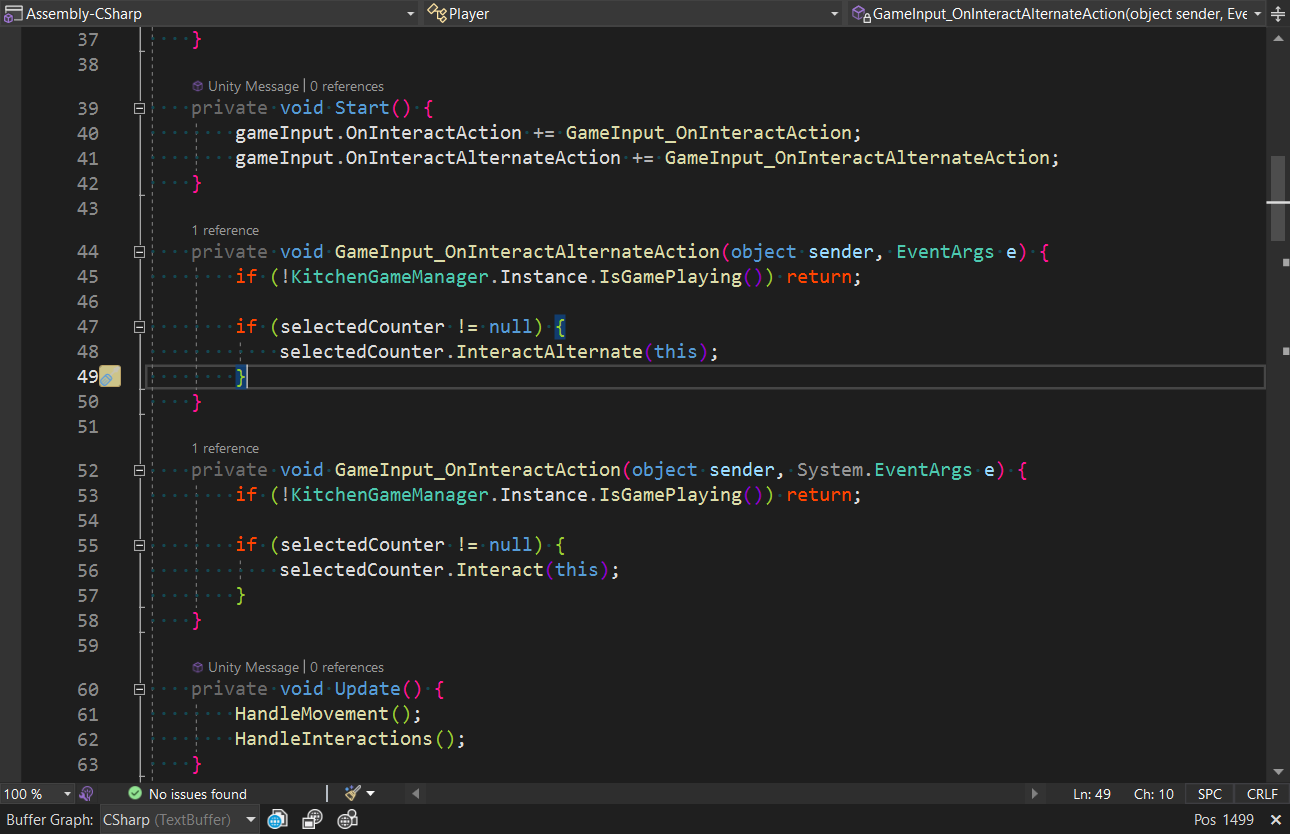
一个非常好看的Code Style,比起之前只是一片蓝色要好很多。
Windows 文件搜索
Everything - voidtools
Listary - Listary – File Search & App Launcher
自带的资源管理器中的资源搜索比较慢。可以使用everything。
Windows 下文件解锁
有时候想要删除某个文件发现被占用,无法删除掉,这时候可以使用IObit Unlocker去解锁文件,这个软件安装完成后是个右键菜单。
Windows 下的代理
Proxifier - https://www.proxifier.com/download/
Windows 鼠标键盘共享
1.可以以某台电脑为Server,其它电脑为Client,一套鼠标键盘控制多台电脑 barrier - GitHub - debauchee/barrier: Open-source KVM software测试之后发现鼠标对不准,会在另外一边屏幕消失。Github上的也有提Issue。
2.Mouse without Borders
下载网址 https://www.microsoft.com/en-us/download/details.aspx?id=35460
参考视频:同时操控 2 台电脑,只需一个鼠标和键盘!完全免费,由微软官方提供 | 零度解说 - YouTube 这个鼠标在某些地方上也会消失,比如开始菜单。
Windows 开机启动
只需要把快捷方式放到 %appdata%\Microsoft\Windows\Start Menu\Programs\Startup 这个目录下,即可。
Windows 更改文件夹所有者
<directory> 右键 -> Properties -> Security -> Advanced -> Owner (Change)
Windows 下截图工具
- Snipaste Snipaste Downloads
- FastStone Capture
FSCapture 10.2:

username: Abuela Juana
Reg code: KYOQT-RXMFA-GVHKK-TAXPC
username: J3ud1/YouTube
Reg Code: GXFQN-RAMXF-RUBND-JNHGA
username: Mi mama Senayda
Reg Code: PPDNN-JEEGY-ARPNV-ESMXI

FSCapture 9.9:

username: Free Software
Serial: BXRQE-RMMXB-QRFSZ-CVVOX
Windows 安装Optional features
如果安装的Windows是Pro N版本,是不带Media Feature Pack的,这样在安装Camtasia录屏软件时会出错。
安装Media Feature Pack,在Windows设置 -> Apps -> Optional features -> Add a feature (搜索 Media Feature Pack)。
sfc /scannow如果这个命令执行失败,则可能是服务被关闭,需要执行sc config trustedinstaller start= auto再执行net start trustedinstaller , 再去执行sfc。参考sfc /scannow "Windows Resource Protection could not start the repair service"Windows下比较两份(多份)文件(目录)不同
WinMegre。比较文件内容不同,比较目录不同。堪称神器。
Windows 下任务栏统计数据显示
开源的小工具可以在任务栏显示当前网速,CPU使用率等等Taskbar Stats is an open source tool that displays your computer's resource usage on the Windows Taskbar - gHacks Tech News好像只支持Win10且已经不更新了。
Windows 常用命令
## List All Shares
net share

## Stop Sharing a Folder
net share sharename /delete
Windows下的常用软件代理
pip: %APPDATA%\pip\pip.ini
[global]
proxy = http://user:password@proxy_name:port
git: C:\Users\<username>\.gitconfig
[http]
	proxy = http://127.0.0.1:10809
[https]
	proxy = http://127.0.0.1:10809
如果某个仓库不需要走代理,例如仓库是本地局域网的,可代理中又是全局,这时可以在那个本地仓库的config文件中增加:
[http]
	proxy =
[https]
	proxy =
npm:
# 设置代理
npm config set proxy=http://<server>:<port>
npm config set registry=http://registry.npmjs.org
npm config set https-proxy http://<server>:<port>

# 移除代理
npm config delete proxy
npm config delete https-proxy
Windows CMD 中文显示
在CMD的顶部空白处右键,打开属性,选择字体,在字体选项栏中,将默认字体(我这里是Consoles)改为KaiTi,就可以显示中文了。
Windows 设置系统级别代理
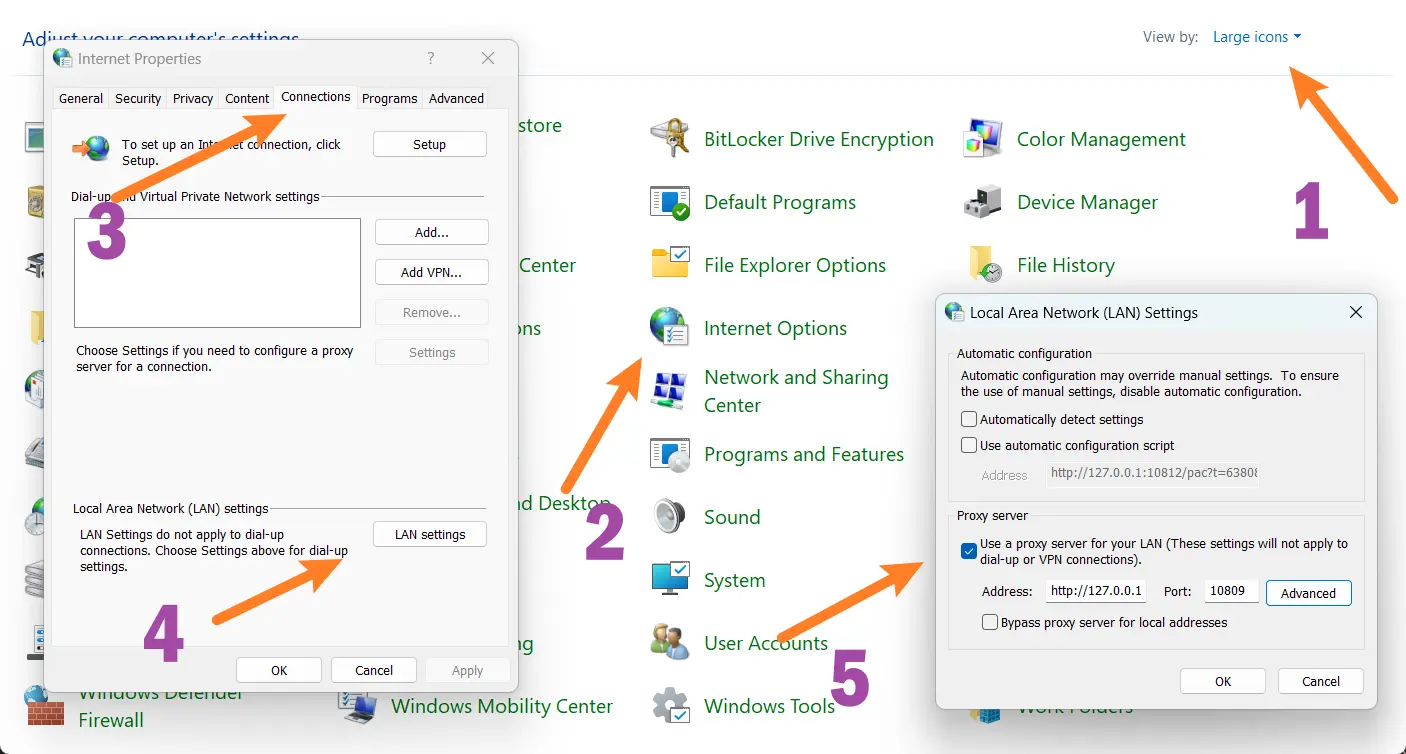
软件Proxifier可以做到程序级别,像Google浏览器插件Proxy SwitchySharp做到浏览器级别的代理。系统级别可以做到底层的代理,虽然不知道下方的设置是否正确,但起到了效果。
控制面板 -> Internet Options -> Connections -> Proxy server
Windows 使用rsync同步文件
rsync是在linux下运行的程序,windows下使用cygwin查询了一下,是有rsync这个包的。遂尝试一下
最开始时根据查到的文章需要ssh,所以在windows下开启了features里面的OpenSSH-server/client。这一步也许不需要。
# 安装cygwin
scoop install cygwin
# cygwin setup 安装 rsync和nano (文本编辑器)
--- (这一步需要手动)
# 配置rsync配置文件,见下面
nano /etc/rsyncd.conf
# 启动守护进程
rsync --daemon
# 查看端口是否监听,默认是873
netstat -ano | findstr 873
#uid = 0 # 注释了,默认是nobody
#gid = 0 #
use chroot = false
strict modes = false
hosts allow = *
log file = rsyncd.log

# Module definitions
# Remember cygwin naming conventions : c:\work becomes /cygwin/c/work
#
[localsync]
path = /cygdrive/d/mount
read only = false
transfer logging = yes
# 同步Windows下F:/mount/library到服务端配置的D:/mount目录下
rsync -avr /cygdrive/f/mount/library 192.168.31.200::localsync
# 反过来,将服务端配置的D:/mount下的文件同步到F:/mount
rsync -avr 192.168.31.200::localsync /cygdrive/f/mount
Windows 通过http请求关机的程序
https://github.com/karpach/remote-shutdown-pc
安卓手机Termux执行: curl http://<ip>:5001/secret/shutdown 即可关机
Windows Steam假入库中招
https://www.bilibili.com/read/cv29858481/
Set-ExecutionPolicy -ExecutionPolicy Restricted -Scope CurrentUser
Get-ExecutionPolicy
Windows 下百度网盘右键菜单关闭
reg delete HKEY_CLASSES_ROOT\Directory\shellex\ContextMenuHandlers\YunShellExt /f
reg delete HKEY_CLASSES_ROOT\*\shellex\ContextMenuHandlers\YunShellExt /f
pause
Windows 11 恢复经典右键菜单
reg.exe add "HKCU\\Software\\Classes\\CLSID\\{86ca1aa0-34aa-4e8b-a509-50c905bae2a2}\\InprocServer32" /f /ve

# Computer\\HKEY_CURRENT_USER\\Software\\Classes\\CLSID\\{86ca1aa0-34aa-4e8b-a509-50c905bae2a2}\\InprocServer32
Windows下 Win+R 常用命令
ncpa.cpl # 网络连接窗口
gpedit.msc # 用户的组策略设置
msconfig # 系统配置
Windows 换系统后 git仓库报错
fatal: detected dubious ownership in repository at 'C:/src/FeELib-for-Houdini'
'C:/src/FeELib-for-Houdini' is owned by:
        (inconvertible) (S-1-5-21-000000000-000000000-000000000-1001)
but the current user is:
        DESKTOP-8XTDVAM/Aaron (S-1-5-21-000000000-000000000-000000000-1001)
To add an exception for this directory, call:

        git config --global --add safe.directory F:/src/FeELib-for-Houdini
# By kimi
takeown /f "F:\\src\\FeELib-for-Houdini" /r /d y
icacls "F:\\src\\FeELib-for-Houdini" /grant Aaron:F /t
Windows11 Copilot安装与更新
首先更改系统区域为国外。后再安装Copilot
https://apps.microsoft.com/detail/9nht9rb2f4hd?hl=en-US&gl=US
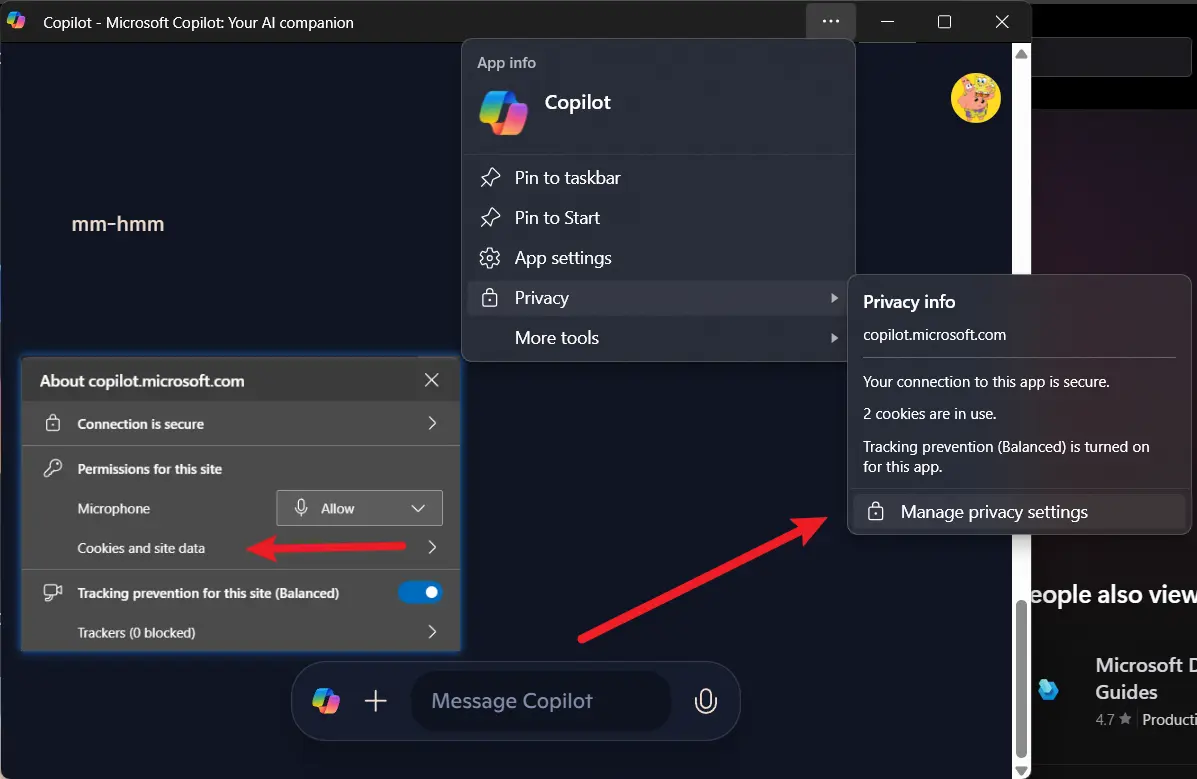
清除掉cookies再重新登录。
Windows 移除PIN
Let’s try simple steps and check if this helps in resolving the issue. Follow the below steps.
- Open the Settings, and click/tap on the Accounts icon.
If you are using a Microsoft Account to sign in, then make sure that you verify your account on the PC. - Select Sign-in options, and click/tap on I forgot my PIN.
- Click/tap on Continue.
- Leave the PIN fields empty, and click/tap on Cancel.
- Your PIN will now be removed. You can create a new PIN whenever you want to or continue using your Windows 10 PC without a PIN.
Windows 11 桌面 删除Linux图标
未开启 Subsystem for Linux 桌面莫名出现Linux图标
Windows Registry Editor Version 5.00

[HKEY_CURRENT_USER\Software\Microsoft\Windows\CurrentVersion\Explorer\HideDesktopIcons\NewStartPanel]
"{B2B4A4D1-2754-4140-A2EB-9A76D9D7CDC6}"=dword:00000001